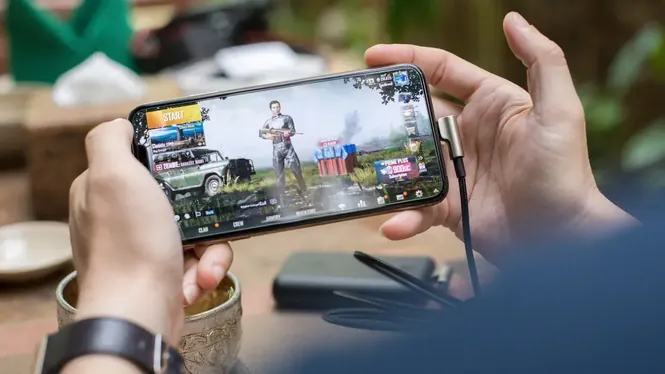

Resolution is the single most powerful graphics choice on a phone: it decides how many pixels the GPU must draw for every frame. Understanding it explains most of the performance difference between a stuttering game and a smooth one.
This guide explains resolution in plain language, what each level costs and gives, and how to pick the right setting for your device with the help of ZenHub GFX. The ZenHub GFX APK download page carries the download package and full app details.
What Resolution Means in Mobile Games
Resolution is the number of pixels in the game image, described by width and height. More pixels mean a sharper picture and more work per frame.
Phone screens are often sharper than games need. Rendering slightly below the panel's native resolution is a normal technique that trades a little sharpness for a large performance gain.
Manufacturers market screen resolution heavily, which trains buyers to treat maximum as correct. In gaming, the panel's peak is a specification, not an instruction, and using slightly less is standard practice even on powerful hardware.
If a game stutters only when looking at the horizon, resolution is the prime suspect, because distant views maximise drawn pixels.
The Performance Cost of Pixels
Doubling the pixels roughly doubles the fill work for the GPU. That is why one resolution step can change a game from choppy to smooth more than any other single option.
When a game struggles, resolution should be your first adjustment, before shadows or effects. It has the biggest effect and the smallest impact on how the game actually plays.
There is also an interaction with display scaling: some phones present the game a virtual canvas rather than the raw panel. The setting names may therefore look abstract, but the principle, fewer pixels drawn per frame, stays identical.
Menus rendered at full panel sharpness can disguise in-game softness; judge inside gameplay, never in the settings screen preview.
How Low Can You Go?
Very low resolution makes text soft and distant objects harder to identify, which can hurt in shooters where spotting matters.
The practical floor is the level where menus stay readable and enemies at your usual fight distance stay clear. Test in a real match, because the lobby always looks sharper than gameplay feels.
Streaming and recording multiply resolution cost, because the phone renders the game and encodes video simultaneously. Creators on mid-range phones should treat one step down as the default starting point, not a compromise.
One step is a smaller change than it sounds, roughly a quarter fewer pixels diagonally in many scaling ladders, which is why it so often suffices.
Resolution and Battery Life
Pixels cost energy as well as speed. A lower resolution lets the GPU finish each frame sooner, which reduces heat and extends battery life during long sessions.
If you play away from a charger, a one-step resolution reduction is often the difference between finishing a session comfortably and watching the battery warning appear mid-match.
If your game offers a dynamic resolution option, understand its bargain: it lowers resolution automatically under load to protect frame rate. For many players that automatic behaviour is the best of both worlds and worth trying before manual tuning.
Players with larger phones benefit most from the one-step rule, because their panels carry the heaviest native pixel counts. Readers can find the full answer in Is ZenHub GFX APK Safe to Install on Android?.
Resolution and Heat
Sustained high resolution keeps the GPU at full effort, and phones respond to the resulting heat by slowing the processor. That throttling is why some games feel fine for ten minutes and then deteriorate.
A slightly lower resolution keeps performance flat for a whole session. Consistency across an hour matters more than brilliance across five minutes.
Text legibility is a genre question. Strategy and RPG players read constantly and should protect resolution more; shooter players in motion can trade it more freely. Let your main genre cast the deciding vote.
Take before-and-after screenshots of the same scene when undecided; your later eyes will arbitrate better than your in-match impressions.
Matching Resolution to Screen Size
Small screens hide lower resolution well because pixels are packed tightly. Large phones and tablets show softness sooner, so they benefit from higher settings when the hardware allows.
Consider your actual viewing distance too. A phone held close during competitive play reveals more softness than one resting on a stand for casual sessions.
External displays change the equation again: playing on a television or monitor reveals softness a phone screen hides. If you dock your phone to play, test resolution on the big screen, not the small one.
Resolution is also the kindest setting to change mid-season, because it alters workload without altering how your hands play.
Per-Game Resolution Choices
Not every game needs the same resolution. A fast shooter benefits from the performance headroom of a lower setting, while a slow adventure game can afford sharpness.
Build the habit of choosing resolution per game rather than using one global value. That is the core idea behind per-game profiles, and it prevents a heavy game from inheriting an unsuitable setting.
Children and new players often inherit a phone with resolution forced to extremes by a previous owner or a video. When a game feels mysteriously wrong on a new device, resolution is among the first three settings to inspect.
A phone used heavily for video calls and streaming may already run warm; leave it extra resolution headroom for gaming.
Resolution vs Graphics Quality Settings
Resolution and texture quality are different controls. Resolution sets the size of the whole image; textures set the detail inside surfaces.
If the picture looks blurry overall, resolution is the cause. If the picture is sharp but surfaces look plain, textures are the cause. Adjusting the right one saves time and performance.
Remember that resolution interacts with anti-aliasing: a slightly higher resolution sometimes needs no AA at all, while a lower one benefits from light AA. Judge the pair together rather than maximising each alone.
When a developer adds a resolution slider in an update, treat it as an invitation to redo this guide's three-step test once. Readers can find the full breakdown in ZenHub GFX Graphics Settings Explained for Beginners.
Testing Resolution Changes Properly
Change resolution alone, then play the most demanding mode you use: a hot drop, a busy city area, or a large team fight.
Watch for two things: whether distant targets stay readable, and whether the frame rate stays calm in crowds. A setting that passes both tests is your correct level, whatever its name.
For battery-critical days, resolution is the graceful degradation path. Dropping one step preserves the game's look and feel far better than slashing frame rate, which changes how the game plays, not just how it looks.
Avoid judging resolution while the phone is downloading the game itself in the background; that contaminates every measurement.
Common Resolution Mistakes
Forcing the maximum resolution because the screen supports it is the most common error. The panel's native resolution is a ceiling, not a recommendation.
The opposite error also exists: copying an extremely low competitive setting onto a strong phone wastes clarity you could afford. Balance, not extremism, is the goal.
Finally, write down the level you settle on per game. Resolution names differ between titles, so note the relative position, such as one below maximum, which transfers between games far better than a raw number.
The right level feels unremarkable, which is precisely the point: unremarkable is what lets the game be remarkable.
A Simple Rule for Choosing
Start one step below your screen's comfortable maximum. If performance is shaky, go one step lower. If performance is perfectly calm and the image feels soft, go one step higher.
That three-step test takes two matches and gives you a defensible, device-specific answer instead of a guess borrowed from someone else's phone.
Over months, this one habit quietly standardises your whole library: every game starting from a proven, device-specific resolution decision instead of a factory guess.
Keep the rule taped to your routine: start one step down, and let evidence, not specifications, argue you upward.
Conclusion
Resolution is a budget: every pixel you render is paid for with frame rate, battery, and heat. Spend the budget where your eyes actually benefit, which for most players means one careful step below maximum, verified in the busiest scenes of the games you play most.
Once that level is set, leave it alone and let other settings handle appearance. A stable resolution choice is the quiet foundation underneath every smooth ZenHub GFX profile. Readers can find the full breakdown in ZenHub GFX Graphics Settings Explained for Beginners and ZenHub GFX Visual Customization and Game Display Guide.