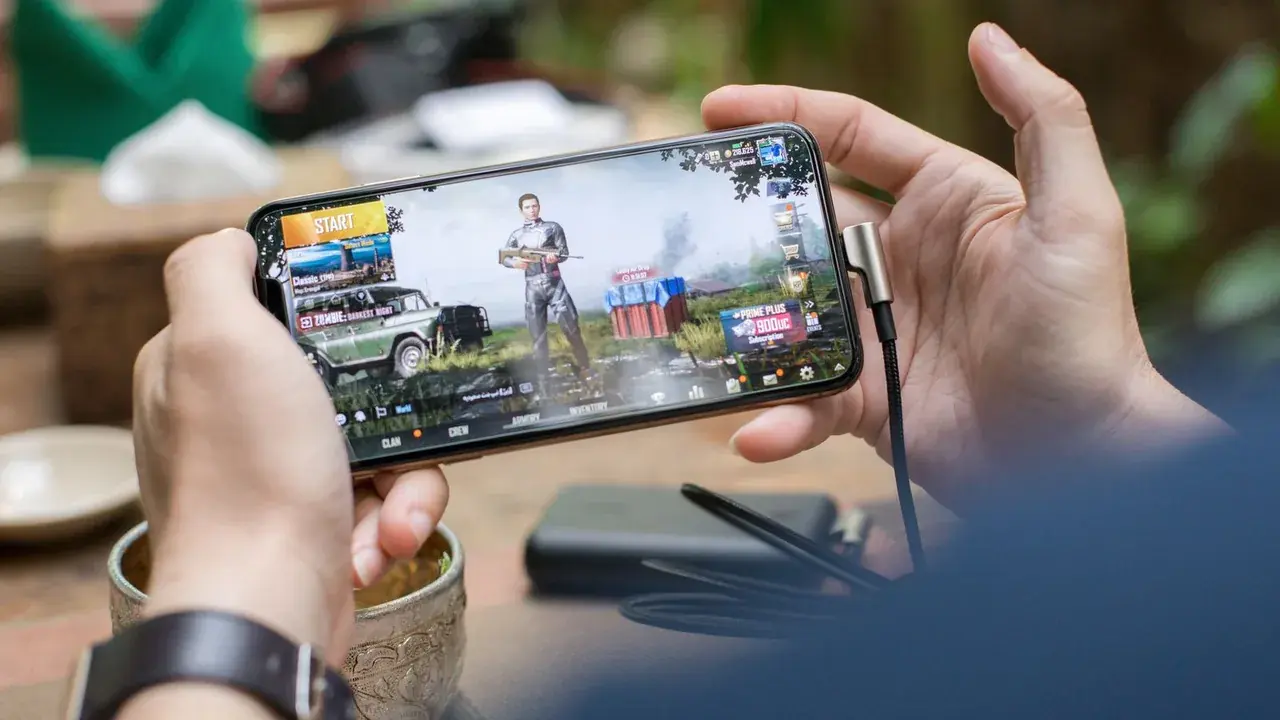
PUBG Mobile is heavier than most Android shooters, with large maps, long view distances, and detailed environments. That weight is exactly why players look at ZenHub GFX before a session: the right graphics balance can be the difference between a smooth gunfight and a stuttering one.
This guide covers how to approach PUBG Mobile settings through ZenHub GFX, from frame rate priorities to spotting enemies at distance, with separate advice for weaker and stronger phones. The ZenHub GFX official site page carries the download package and full app details.
Why PUBG Mobile Needs Careful Graphics Choices
PUBG Mobile renders wide open terrain, vehicles, and up to a hundred players in one match. Every graphics option adds load, and the load changes as you move from quiet looting areas to a crowded final circle.
ZenHub GFX helps users separate the choices: frame rate for responsiveness, resolution for clarity, and effects for appearance. Treating them separately is the key to a good PUBG Mobile profile.
The game's large draw distance is the core challenge: the engine renders terrain, buildings, and foliage far beyond your immediate fight, so settings that feel fine in a small game can buckle here.
The game's replay system is an underused coach: watch your deaths and count how many began with a stutter or a late-rendered opponent.
Frame Rate First on Erangel and Miramar
Large maps punish unstable frame rates because fights often start at long range, where small stutters make tracking a moving target much harder.
Choose the highest frame rate option your phone can hold steadily, then build the rest of the profile around it. A locked, calm frame rate beats a higher setting that collapses in the final circles.
A practical trick is to test settings while riding as a passenger. Vehicle speed forces constant world loading, exposing stutters that standing still in a compound would never reveal.
Uphill fights expose frame drops cruelly, because aiming adjustments are constant; test any new profile on sloped terrain, not only in towns.
Graphics Style and Enemy Visibility
Graphics style changes colour and contrast. Many players prefer a brighter, more colourful style because player models stand out more clearly against grass and walls.
Whatever style you pick in your ZenHub GFX routine, test it at long range. A style that looks pleasant in the lobby may hide a prone player in grass at two hundred metres.
Audio deserves a mention alongside visuals: hearing footsteps and distant shots clearly is information no graphics setting can replace, so keep game volume and headset quality in your setup thinking.
A wired headset removes Bluetooth audio delay from the information chain, a small edge that costs nothing once owned.
Resolution for Long-Range Spotting
Resolution matters more in PUBG Mobile than in close-range games because so much play happens at distance. Higher resolution makes helmets, weapons, and movement easier to read far away.
The trade-off is GPU load. If raising resolution costs frame stability, lower it one step. In PUBG Mobile, a steady scope picture is worth more than a sharper but shaky one.
Players on tablets gain a visibility advantage from the larger image but pay for it with more pixels to render. The same priority order applies; only the budget is bigger and the bill is bigger too.
If your phone has a game-space overlay with a performance monitor, learn its frame graph; a flat line is the portrait of a correct profile. Readers can find the full breakdown in ZenHub GFX FPS and Smooth Gameplay Optimization Guide.
Shadows, Effects, and Performance Cost
Real-time shadows and heavy effects are usually the first options to reduce. They look impressive in screenshots but add cost in exactly the moments when many players and vehicles appear together.
Turning decorative options down rarely hurts competitive play. Enemies do not become harder to see; in many lighting conditions, simpler scenes are actually clearer.
If you squad with friends on stronger phones, resist matching their settings out of pride. Your profile serves your hardware, and a steady personal setup contributes more to the squad than a borrowed beautiful slideshow.
Settings fatigue is real in this game because the menu is vast. Decide your profile, save it, and spend the reclaimed attention on positioning and rotations.
Handling Heat in Long Matches
A full PUBG Mobile match can run past thirty minutes, and sustained load heats any phone. As temperature rises, the processor slows down and late-game performance falls.
Start matches with a cool device, avoid charging while playing when possible, and consider slightly lower settings for marathon sessions than for single short matches.
Scope-in moments deserve their own test: open the largest scope you use, sweep across a town, and watch for judder. That sweep is one of the most demanding ordinary actions in the game.
During long zone rotations in a vehicle, passenger-seat testing reveals streaming hitches that drivers are too busy to notice.
Scope and Gyroscope Sessions
Many PUBG Mobile players aim with a gyroscope, which depends on the game responding instantly to tiny movements. Frame drops feel twice as bad with gyro aim because the view judders instead of gliding.
If you use a gyroscope, protect frame stability above everything else in your profile, and keep background recording or streaming apps closed while you play.
Night and weather variants of maps punish extreme display choices. A style that looks clean at noon may fail in fog, so rotate your testing across conditions when the game offers them.
Keep brightness high enough for shadowed interiors even at some battery cost; in this game, information is ammunition.
Profile for Low-End Phones
On a low-end device, use the lightest graphics, a reduced resolution, and the best frame rate the phone can genuinely hold. Close other apps and keep several gigabytes of storage free.
PUBG Mobile also offers its own lightweight options. Combining careful in-game choices with a sensible ZenHub GFX profile gives budget phones their best chance at a playable match.
For players who record or stream, remember that recording adds real load. Test your profile with recording on if that is how you actually play, or the live session will meet a different phone than the test did.
After switching phones, your old profile is a hypothesis, not a conclusion: one evening of testing confirms or revises it. ZenHub GFX FPS and Smooth Gameplay Optimization Guide covers this in more detail.
Profile for Mid-Range and Flagship Phones
Capable phones can combine higher resolution with strong frame rates. Enable high refresh options where supported, and raise graphics in small steps while watching final-circle performance.
Even on a flagship, maximum everything is rarely the smartest competitive choice. Most experienced players keep effects modest and spend the performance budget on frame rate and clarity.
Long-term, keep notes per map if you play competitively. Erangel's open fields and a dense urban map stress the engine differently, and a profile that is merely good everywhere is the usual right answer.
Squad roles can inform settings: the scout who scopes distant compounds needs clarity more than the entry player needs raw frames.
Lobby Settings vs Real Match Testing
The lobby and training ground are poor judges of performance because they load far less than a live match. A profile that feels perfect in training may fail in a hot drop.
Judge every change in real matches, ideally in busy landing zones and final circles. Those are the moments your settings must survive.
Finally, judge a profile across a whole evening, not one match. PUBG Mobile sessions are long, heat accumulates, and the profile that respects that reality wins quietly.
Patience with one-variable testing pays compound interest here because the game's settings interact more than most.
Fair Play and PUBG Mobile Rules
Use ZenHub GFX for display and performance adjustment only. Tools or files that alter gameplay, remove recoil, or reveal information unfairly violate PUBG Mobile rules and risk the account.
Keep your setup clean: graphics, frame rate, and device performance are legitimate areas to optimise; gameplay manipulation is not.
None of this requires exotic knowledge. It requires testing where the game is heaviest and believing what your own matches tell you.
Judge the profile by your worst fight of the night; that is the fight it was built for.
Conclusion
PUBG Mobile rewards patience in settings just as it does in matches. Build your ZenHub GFX profile around a frame rate your phone never drops, choose a style that keeps enemies visible at range, and let decorative effects take whatever performance is left over.
Tested in real hot drops and final circles rather than the training ground, that profile will serve you on every map, and it can be raised step by step if you move to a stronger phone later. Readers can find the full breakdown in ZenHub GFX FPS and Smooth Gameplay Optimization Guide and ZenHub GFX Lag Fix Guide for Low-End Android Devices.