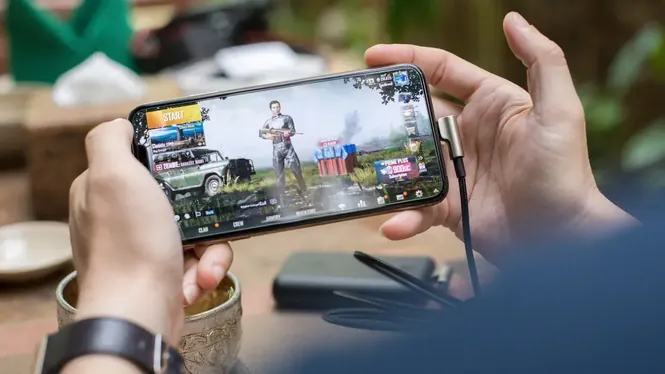
Beyond sharpness and speed, games offer control over colour itself: HDR modes, vivid or classic styles, and saturation choices that change the mood of every scene. These options genuinely affect how well you play, not just how pretty screenshots look.
This guide explains what these colour settings do, how they interact with your phone's display, and how to choose a style through your ZenHub GFX routine that helps visibility first and decoration second. The ZenHub GFX APK page carries the download package and full app details.
What Graphics Styles Change
A graphics style is a colour treatment applied to the whole image: how saturated colours are, how contrast behaves, and how shadows and highlights are toned.
Styles do not change geometry or textures. The same scene rendered in two styles can feel like different times of day, which is why the choice affects spotting and comfort so much.
Photographers call the equivalent decision picture profiles, and their lesson transfers: there is no correct style, only the style whose compromises suit your purpose. Competitive visibility is a purpose; so is cinematic mood.
If night maps feel unplayable while day maps feel fine, your style is failing the darkness test regardless of its daytime beauty.
HDR in Mobile Games, Simply
HDR aims to show more detail in very bright and very dark areas at once, like a sunlit street with a shaded doorway where an enemy waits.
True HDR needs a compatible display and game support. When either is missing, an HDR-labelled option may simply be a brighter, punchier style rather than genuine high dynamic range.
If a game supports per-map or per-mode styles, resist the temptation. One trusted style everywhere beats a gallery of local favourites, because your eyes calibrate to consistency across a session.
Loot rarity colours must survive your style unchanged in meaning; if two rarities blur together, the style is taxing your decisions.
Style and Enemy Visibility
The competitive question for any style is whether player models separate cleanly from backgrounds in grass, shadow, and interior light.
Brighter, more colourful styles usually help outdoors, while very cinematic styles with crushed shadows can hide opponents in dark corners. Test your style in the darkest map areas you play, not just the prettiest.
Record a minute of gameplay in each candidate style and watch the recordings side by side the next day. Fresh eyes judge colour far more honestly than eyes that just adapted to it in play.
A warmer evening profile can share every performance setting with your day profile; only colour and brightness need passports between them.
Saturation: Helpful Until It Is Not
Moderate saturation makes team colours, loot highlights, and health indicators pop, which speeds recognition.
Extreme saturation tires the eyes, bleeds colours together, and can make red indicators harder to distinguish. If everything glows, nothing stands out.
Players returning after a break often blame styles for rust that is really rust. Give any style a full evening before sentencing it; adaptation is part of the evaluation.
Streamers should remember their audience sees a compressed version of their colours; extreme styles compress into mud on viewers' screens. Readers can find the full breakdown in ZenHub GFX Graphics Settings Explained for Beginners.
Your Phone Display Is Part of the Chain
Phones render colour differently depending on their display mode: vivid modes exaggerate, natural modes stay accurate. The game style and phone mode multiply together.
If games look overcooked on your phone generally, switch the phone's display to its natural mode before blaming in-game styles. Fix the foundation before seasoning the dish.
Household tip: a phone shared with a younger sibling will accumulate experimental style changes. A saved profile and a note of the style name restore your calibrated view in seconds.
Colour is also communication with teammates: skins and markers chosen for visibility deserve a style that preserves their intent.
Night Play and Eye Comfort
Long night sessions in vivid styles strain eyes, especially in a dark room. Warmer, calmer styles and reduced brightness are kinder for evening play.
Many players keep two habits rather than two profiles: a visibility style for competitive daytime play, and the same style with lower brightness and a system eye-comfort mode at night.
The display's colour temperature setting, warm versus cool, quietly re-lights every game. If all games share a strange tint, that system slider, not any game's style, is the common author.
When a game adds a new style in an update, audition it in the dark-corner test before adopting it for a season.
Colour Vision Considerations
Players with colour vision differences should lean on styles and game modes that separate information by brightness and shape, not hue alone.
Most modern games include colourblind options in their own settings. Use those first, then choose a ZenHub GFX style that keeps those adjusted indicators clear rather than re-distorting them.
True HDR content also raises brightness peaks, which raises heat and battery cost slightly. On a long journey, the calmer style may again be the wiser competitive choice.
Your future self, returning after a month away, will thank you for one stable style they can relearn instantly.
Testing a Style Properly
Tour your usual maps deliberately: a bright open area, a shadowed interior, a dusk or night scene, and a grassy field. Watch how targets read in each.
Spend at least one full match per candidate style. First impressions favour the more dramatic option; sustained play reveals which one your eyes actually prefer.
Do not overlook the humble brightness slider as a colour tool: many visibility problems blamed on styles are simply a dim screen in a bright room, and the cure takes one second.
If eye strain ends your sessions before boredom does, colour and brightness are performance settings for you personally. ZenHub GFX Visual Customization and Game Display Guide covers this in more detail.
Styles and Performance Cost
Colour styles are among the cheapest settings in a game, usually costing far less performance than resolution, shadows, or frame rate.
That cheapness makes style a safe place to personalise. Once performance settings are fixed, choose colour purely by visibility and taste.
Style loyalty has a social benefit too: squad mates reviewing your clips see the game as you see it, which makes callouts about colours and landmarks unambiguous.
Small saturation steps are more powerful than they look; the slider's middle third contains most of the usable quality.
Consistency Across Games
If you play several shooters, using similar style choices across them keeps your visual expectations consistent when you switch titles.
Your sensitivity and colour habits are a personal house style. Keeping them aligned between games reduces the warm-up time every session needs.
Treat any style that promises hidden-enemy revelation through extreme distortion with suspicion. Visibility comes from separation of brightness and shape, not from turning the game into a neon accident.
Judge styles at your real viewing distance, phone in hands, not zoomed at a desk.
A Practical Style Routine
Set the phone display to a mode you trust, pick the game style that survives the dark-corner test, adjust saturation only if indicators are unclear, and stop.
Resist weekly style-hopping. Colour memory, like aim memory, improves with stability, and constant change quietly taxes both.
When you find the style that passes every lighting test, stop browsing. Colour is a solved problem at that point, and your attention is worth more on the game itself.
Solved colour is invisible colour: you notice the game, never the treatment.
Conclusion
Colour settings are competitive settings in disguise: they decide how fast your eyes separate a player from a shadow, and how long you can play before fatigue sets in. HDR and styles earn their place when they pass the darkest-corner test on your own display.
Choose once, carefully, with real matches in mixed lighting, then let the choice fade into the background of your ZenHub GFX routine where it belongs. Readers can find the full breakdown in ZenHub GFX Visual Customization and Game Display Guide and ZenHub GFX Graphics Settings Explained for Beginners.