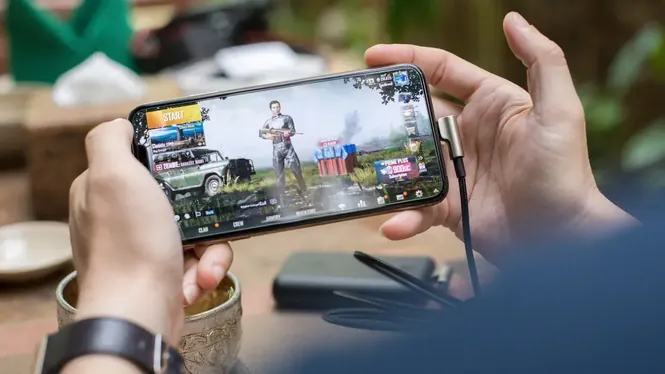
Gaming drains a phone battery faster than almost anything else, because the screen, processor, GPU, and network all work at once. Players who use ZenHub GFX often ask whether settings can stretch a session, and the honest answer is yes, within limits set by physics.
This guide explains where gaming battery actually goes, which settings save the most energy, and how to build a ZenHub GFX routine that trades a little spectacle for a lot of extra play time. The ZenHub GFX APK page carries the download package and full app details.
Where Gaming Battery Goes
The display is usually the biggest consumer, followed by the GPU rendering frames and the processor running game logic. Network radios add more drain in online games.
This order matters because it tells you where savings live: screen brightness and resolution first, frame rate second, and decorative effects third.
Battery percentage displays can mislead: the first ten percent often falls slower than the middle. Judge drain by timing a full session and noting start and end percentages, not by watching the icon mid-game.
A five-percent saving repeated daily is a charging cable you no longer carry and a battery that ages measurably slower by year's end.
Brightness: The Fastest Saving
Lowering brightness during indoor play is the simplest battery saving available and it costs nothing in performance.
If your phone has adaptive brightness, it may raise the screen under bright light exactly when the battery is working hardest. Setting a comfortable manual level for gaming sessions keeps drain predictable.
Dark scenes cost less on OLED screens, which light pixels individually. Night maps and dark-mode menus genuinely save a little energy on such displays, though the graphics settings in this guide save far more.
Check which of your games is secretly the thirsty one; per-title honesty redirects effort better than global guilt.
Frame Rate and Energy
Every extra frame is extra work. A game running at a high frame rate can drain noticeably faster than the same game at a moderate rate.
For casual sessions, single-player modes, or grinding that does not need peak responsiveness, choosing a calmer frame rate target in your profile is the single biggest settings-based saving.
Widgets and live wallpapers are small but constant consumers. On a phone dedicated to long gaming sessions, a static wallpaper and a lean home screen remove a background tax you pay all day, not only while playing.
Dimming the screen during loading screens and lobbies is free energy most players leave on the table.
Resolution Savings
Rendering fewer pixels lets the GPU finish each frame sooner and rest longer between frames, which saves energy and reduces heat at the same time.
One resolution step down is usually invisible on a small screen during fast gameplay, but very visible in the battery percentage left after an hour.
Airplane mode with Wi-Fi re-enabled is an old traveller's trick for offline games: it silences the mobile radio's constant tower negotiation, which is a real drain in weak-signal areas.
If your phone supports scheduled performance modes, align them with your known gaming hours rather than running lean all day. ZenHub GFX Graphics Settings Explained for Beginners covers this in more detail.
Background Apps and Sync
Apps syncing, uploading, or refreshing in the background compete for the processor and wake the radios while you play.
Before a long session, close heavy background apps and pause large downloads or cloud uploads. Your game gets a quieter system and the battery stops paying for work you are not looking at.
If your phone reports per-app battery use, check it monthly. A background app quietly climbing the chart explains many mysterious cases of a battery that aged years in a month.
The cheapest battery upgrade is a longer cable: it lets you play near an outlet without the heat penalty of fast charging in hand.
Network Choices That Matter
A weak mobile signal makes the radio work harder and drains faster than a strong Wi-Fi connection. Where possible, play online games on stable Wi-Fi.
If you play on mobile data in a low-signal area, expect faster drain and more heat. Downloading game resources in advance on Wi-Fi also removes mid-session network strain.
Carrying a modest power bank changes the strategy entirely: with reserve power available, you can afford the prettier profile and simply budget total energy across the day instead of per charge.
Battery anxiety ruins more sessions than battery capacity does; a known, measured drain rate is calming in itself.
Battery Saver Modes: Use With Care
System battery saver modes extend life by capping performance, which can make games stutter. They are useful for light games and harmful for demanding ones.
A better approach for serious play is to save battery through your graphics choices and brightness, keeping the processor free to run the game properly.
Avoid letting the battery regularly hit zero before charging. Deep discharges are stressful for modern batteries, and gamers who drain to empty daily age their phones noticeably faster.
When travelling, download maps and resources on hotel Wi-Fi; the radio savings compound with the graphics savings.
Heat and Battery Health
Heat is both a symptom of drain and a cause of faster battery ageing. Long, hot, high-load sessions are the hardest pattern for a battery's long-term health.
Cooler settings, breaks between sessions, and removing a case while gaming all reduce the thermal stress your battery lives through every day.
Fast charging is best used for short top-ups rather than full charges during play. Heat from sustained fast charging plus gaming is the combination this guide keeps warning about, for battery ageing as much as for throttling.
Keep one genuinely light game installed for low-battery days; it rescues journeys that heavy titles would abandon. ZenHub GFX FPS and Smooth Gameplay Optimization Guide explains this side of the topic in full.
Charging While Playing
Playing while charging combines charging heat with gaming heat, and many phones slow down or limit charge speed to protect themselves.
If you must play plugged in, use the standard charger rather than the fastest one, keep the phone ventilated, and expect a warmer device than unplugged play would produce.
Older phones deserve gentler targets: a battery at eighty percent health holds less and heats more, so yesterday's perfect profile may need one step of mercy this year.
Replace a battery whose health has collapsed before replacing the phone; the economics and the environment both approve.
A Battery-Friendly Profile
A practical long-session profile looks like this: moderate brightness, one resolution step down, a stable mid-range frame rate, decorative effects low, and background apps closed.
That profile will not win screenshot competitions, but it routinely turns a two-hour battery into a three-hour one, which is the trade most players actually want on a journey.
Share profiles with friends on the same handset model when you find a good one. Battery behaviour is unusually transferable between identical devices, unlike aim settings which are personal.
Teach younger players the budgeting view early and their devices will outlast their impatience.
Knowing Your Phone's Real Limit
Battery sizes and chip efficiency differ widely, so measure your own phone: note the percentage used by one hour of your main game at your normal settings.
That single number tells you more than any general guide. Once you know it, you can predict exactly what a settings change buys you.
The mindset shift is the real upgrade: treat battery as a resource you allocate across the day, like money, and every setting becomes a small budgeting decision you already know how to make.
Measure, adjust, measure again: the loop is the entire technology.
Conclusion
Battery-friendly gaming is not about one magic toggle; it is the sum of brightness, resolution, frame rate, background discipline, and network sense. ZenHub GFX settings contribute the graphics half of that sum, and your habits contribute the rest.
Build the calmer profile before you need it, on a day when you are not already watching the percentage fall. Then the next long trip or power cut becomes a longer session instead of a shorter one. Readers can find the full breakdown in ZenHub GFX FPS and Smooth Gameplay Optimization Guide and ZenHub GFX Graphics Settings Explained for Beginners.